Customize your Galaxy phone like a pro
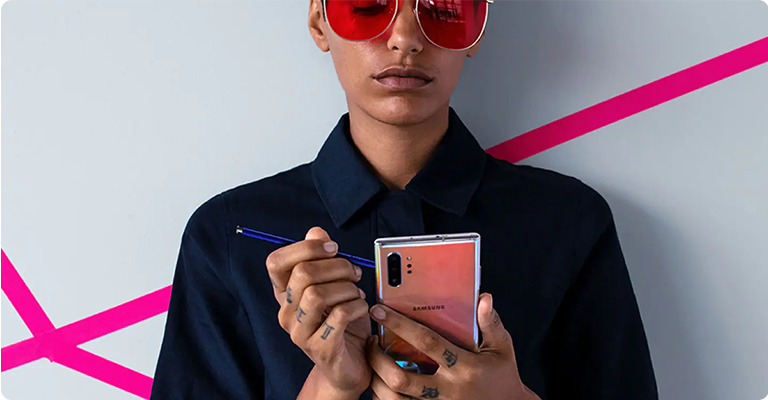
How to customize your Samsung Galaxy phone like a pro
Customizing your Samsung Galaxy phone allows you to create a unique experience tailored to your preferences. From dynamic wallpapers and Always On Display to personalized notifications and call backgrounds, One UI offers powerful customization options. Follow these steps to make your Galaxy phone truly yours.
1. How to set dynamic wallpapers on your Samsung Galaxy phone
Transform your lock screen with dynamic wallpapers that change every time you unlock your phone. You can use photos or videos from your gallery to create a personalized visual experience.
- Press and hold the lock screen for a few seconds.
- Access wallpaper and style.
- Tap Change wallpapers.
- Choose the gallery option.
- Select the photos or videos you want to use.
- Tap Done.
2. How to customize the Always On Display on your Samsung Galaxy phone
Personalize the Always On Display to showcase your style with AR emojis, stickers, or photos. This feature enhances the clock on your lock screen and reflects your personality.
- Access Settings.
- Navigate to the lock screen.
- Enable Always On Display and tap on it.
- Choose Clock style.
- Select Image clock.
- Customize it to suit your preferences!
3. How to personalize Edge Lighting on your Samsung Galaxy phone
Enhance your notifications with Edge Lighting by customizing effects, colors, transparency, width, and duration. This feature adds a unique touch to every notification you receive.
- Open Settings.
- Access Notifications.
- Choose Notification pop-up style.
- Select Brief.
- Click on Edge Lighting Style.
- Customize your preferences, and tap Done.
4. How to set custom call backgrounds on your Samsung Galaxy phone
Personalize your call backgrounds with videos from your gallery or animated AR emojis. This feature allows you to make calls more engaging and reflective of your style.
- Open the Phone app.
- Tap More options (three dots in the top right corner).
- Select Settings.
- Choose Call background.
- Customize your call background based on your preferences.
5. How to customize the Secure Folder on your Samsung Galaxy phone
Ensure the safety of sensitive materials on your phone by customizing the Secure Folder. You can change its icon, text, and color to make it inconspicuous among your apps.
- Open your Secure Folder.
- Tap More options (three dots in the top right corner).
- Choose Customise.
- Edit your file name, color, and icon according to your preferences.
- Tap Apply.
6. How to personalize Edge Panels on your Samsung Galaxy phone
The Edge Panel provides quick access to your favorite apps, features, and contacts. Customize the handle's color, transparency, size, and width to match your Galaxy phone's theme.
- Open Settings.
- Go to Display.
- Enable Edge panels and tap on them.
- Choose Handle.
- Adjust the preferences according to your liking.
Supported Samsung Galaxy devices: Galaxy S24, Galaxy S25, Galaxy S26, Galaxy Z Fold, Galaxy Z Flip, Galaxy A series.
Thank you for your feedback!
Please answer all questions.