How to manage the Quick panel on the Galaxy Fit3?
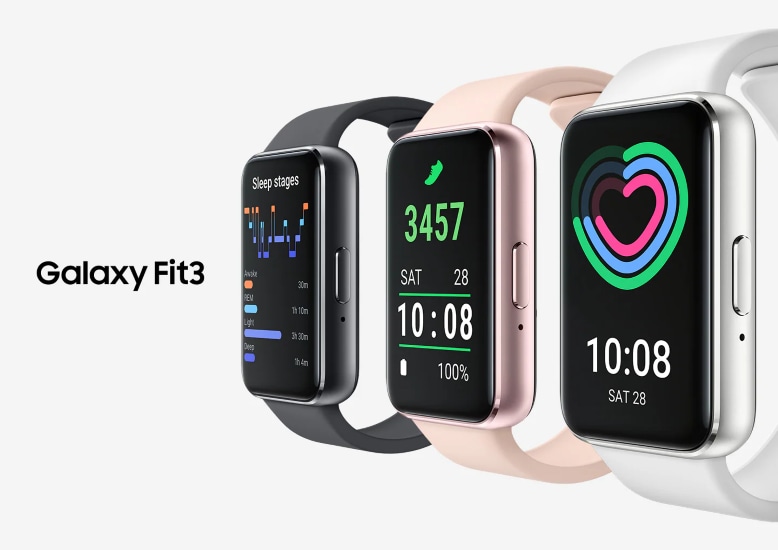
How to customize the Quick Panel on Samsung Galaxy Fit3?
The Quick Panel on your Samsung Galaxy Fit3 provides instant access to essential settings and features. By customizing the Quick Panel, you can personalize shortcuts for a smoother user experience.
1. How to access the Quick Panel on Galaxy Fit3
To open the Quick Panel:
- Swipe down from the top edge of the screen.
- To close, swipe up from the bottom of the Quick Panel.
You can also swipe left or right to navigate between different panels within the Quick Panel.
2. What are the status indicator icons in the Quick Panel?
Status indicator icons display your Galaxy Fit3's current status at the top of the Quick Panel. These icons may vary based on your device's region, carrier, or model.
- Some status indicators, such as charging or workout mode, may also appear on the Watch screen.
To hide these indicators on the Watch screen:
- Open Settings on the Apps screen.
- Go to Advanced features → Status indicators.
- Select Hide after 2 seconds.
3. How to use quick settings icons in the Quick Panel
Quick settings icons allow you to change basic settings or launch features directly. To access detailed settings:
- Tap a quick settings icon to toggle its function.
- Touch and hold the icon to view more options.
- Quick settings icons may vary depending on your connected phone's software version.
4. Supported Samsung Galaxy devices
The Quick Panel customization method described above is compatible with the Samsung Galaxy Fit3. For other Galaxy devices, refer to their specific support guides.
5. Additional things to check
If you encounter issues with the Quick Panel:
- Ensure your Galaxy Fit3 is running the latest software version.
- Restart your device to refresh the interface.
- Check your connected phone's settings for compatibility updates.
Related Samsung support topics
Thank you for your feedback!
Please answer all questions.