Set Up SmartTag2 & View on Map
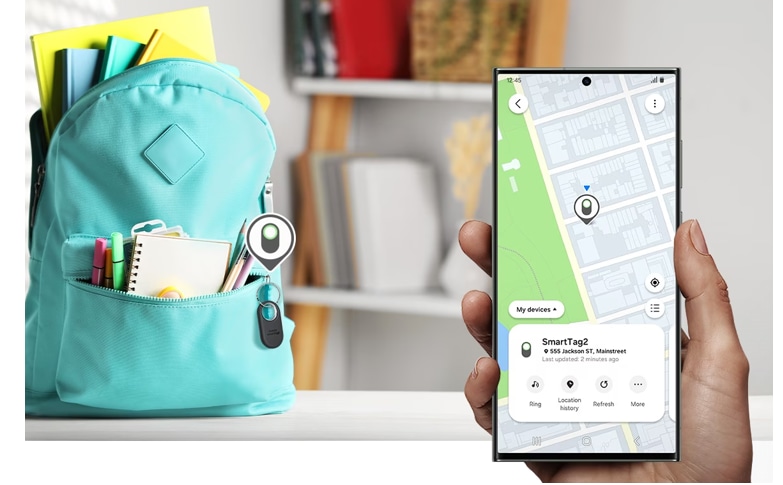
How to Set Up Samsung SmartTag 2 on Your Home Screen and Display It on the Map?
To set up your Samsung SmartTag 2 for easy access and tracking, you can add a shortcut to your home screen and customize which devices appear on the SmartThings Find map. This guide walks you through the process step by step.
1. How to Add SmartTag 2 to Your Home Screen
Follow these steps to create a shortcut for your SmartTag 2 on your mobile device's home screen:
- Open the SmartThings app on your mobile device.
- Tap Life → Find → Three vertical dots → Add to Home screen.
- Touch and hold the icon on the screen or tap Add.
The shortcut will now be added to your mobile device's home screen for quick access.
2. How to Display SmartTag 2 on the SmartThings Find Map
You can choose which devices appear on the SmartThings Find map for easy tracking:
- Open the SmartThings app on your mobile device.
- Tap Life → Find.
- Your SmartTag 2 and all devices added to Find My Mobile through your Samsung account will be displayed.
- Tap Three vertical dots → Set favourite.
- Choose a device to display on the SmartThings Find map and tap Save.
The selected device will now appear on the SmartThings Find map for easy location tracking.
3. Supported Samsung Devices
The SmartThings app and SmartTag 2 setup are compatible with most Samsung Galaxy devices, including:
- Galaxy S24, Galaxy S25, Galaxy S26
- Galaxy Z Fold and Galaxy Z Flip series
- Galaxy A series
4. Additional Things to Check
Ensure your SmartTag 2 is properly paired with your Samsung account and the SmartThings app. If the device does not appear in the Find section, check your Bluetooth connection and ensure the SmartTag 2 is within range.
Related Samsung Support Topics
Thank you for your feedback!
Please answer all questions.