How to set up your note template?
How to customize your note template on Samsung Galaxy devices?
To customize your note template on Samsung Galaxy devices, open the Notes app, access the settings menu, and adjust the style of new notes to fit your needs. This guide walks you through each step for a personalized note-taking experience.
1. Why customize your note template?
Customizing your note template enhances productivity by aligning the appearance of your notes with your workflow. Whether you prefer minimalist designs or vibrant layouts, adjusting the template ensures your notes are both functional and visually appealing.
2. Supported Samsung Galaxy devices
This feature is available on the following Samsung Galaxy devices:
- Galaxy S24, S25, S26 series
- Galaxy Z Fold and Galaxy Z Flip series
- Galaxy A series (select models)
3. How to set up your note template
- Open the Notes app on your Samsung Galaxy device.
- Tap the More options menu (three horizontal lines) located at the top-left corner of the screen.
- Select the Settings icon from the menu.
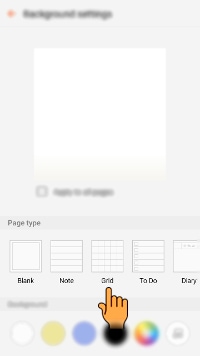
- Navigate to Style of new notes to access customization options.
- Adjust the page style, template, and color settings according to your preferences.
4. Additional things to check
If you encounter any issues while customizing your note template, consider the following:
- Ensure your device's Notes app is updated to the latest version.
- Restart the Notes app or your device if changes don't apply immediately.
- Check for system updates that may include improvements to the Notes app.
5. Related Samsung support topics
Thank you for your feedback!
Please answer all questions.