How to Update Software Using Smart Switch

How to update Samsung Galaxy software using Smart Switch
Updating your Samsung Galaxy software using Smart Switch is a reliable method to ensure your device runs the latest firmware. This guide covers everything from compatibility checks to troubleshooting common issues during the update process.
1. What is Smart Switch and how does it help with software updates?
Smart Switch is a versatile tool developed by Samsung that allows users to transfer data between devices and update their Samsung Galaxy software. Unlike over-the-air (OTA) updates, Smart Switch provides a direct connection to your computer, which can be useful if OTA updates are unavailable or if you want to manually control the update process.
- Smart Switch ensures stable updates by connecting your device directly to a computer, reducing the risk of interruptions caused by unstable Wi-Fi networks.
- It can provide access to updates that may not appear through OTA, especially for older devices or specific regions.
2. Supported Samsung Galaxy devices for Smart Switch updates
Smart Switch supports a wide range of Samsung Galaxy devices, including:
- Galaxy S series (S24, S25, S26)
- Galaxy Z Fold and Z Flip series
- Galaxy A series
- Galaxy Tab and Galaxy Watch devices
3. Technical requirements for Smart Switch
Before using Smart Switch, ensure your devices meet the following requirements:
- For Android devices: Android OS version 4.3 or later
- For Windows computers: Windows 7 or later
- For Mac computers: macOS 10.9 or later
4. How to download and install Smart Switch
- Visit the official Samsung website and navigate to the Smart Switch download page.
- Select the appropriate version for your operating system (Windows or Mac).
- Download and install the software on your computer.
- Ensure your Samsung Galaxy device is connected to your computer using a USB cable.
5. Step-by-step guide to update software using Smart Switch
- Connect your Samsung Galaxy device to your computer using the USB cable provided with your device.
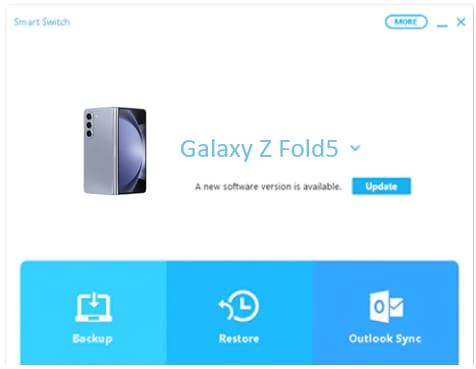
- Open Smart Switch on your computer. The software will automatically detect your device.
- If a software update is available, Smart Switch will display an option to update. Click "Update" to begin the process.
- Follow the on-screen prompts to download the necessary files. Ensure your device remains connected throughout the process.
- Click "OK" to proceed. Your device may restart multiple times during the update. Do not disconnect the USB cable or use your device until the update is complete.
6. Additional things to check before updating
To avoid potential issues during the update, consider the following:
- Ensure your computer has sufficient storage space for the update files.
- Use a stable USB cable and connection to prevent interruptions.
- Close unnecessary applications on your computer to free up system resources.
7. Why software updates may not appear in Smart Switch
If no updates are available through Smart Switch, it could be due to:
- Your device is already running the latest software version.
- The update is region-specific and not yet available for your device.
- Your device's software is outdated and requires an intermediate update first.
8. Related Samsung support topics
Thank you for your feedback!
Please answer all questions.