Use Auto Zoom on Galaxy Z Flip6
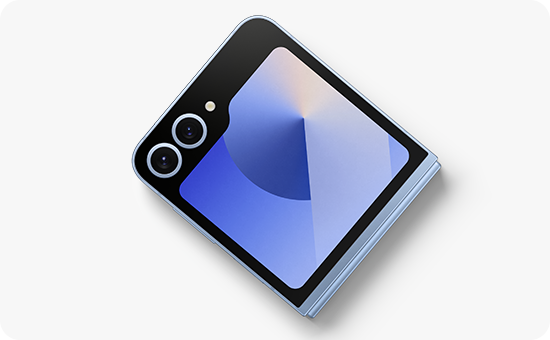
How to Use the Auto Zoom Feature on Samsung Galaxy Z Flip6?
The Auto Zoom feature on the Samsung Galaxy Z Flip6 intelligently recognizes people or pets and automatically adjusts the zoom level to capture the perfect shot in Flex Mode. This guide explains how to activate and use the feature effectively.
1. How to Activate Auto Zoom on Samsung Galaxy Z Flip6
- Press the power button or double-tap the screen to wake the cover display.
- Touch and drag the Camera icon toward the center of the cover screen to open the camera in Flex Mode.
- Open the phone to fully activate Flex Mode.
- Tap the Auto Zoom icon to enable the feature. The camera will now automatically adjust the zoom based on the scene and subjects.
2. Additional Things to Check
- Ensure your Samsung Galaxy Z Flip6 is updated to the latest software version to access the Auto Zoom feature.
- Verify that Flex Mode is properly activated by opening the phone to the correct angle.
- Make sure the camera app is set to the appropriate mode (e.g., Photo or Video) for Auto Zoom functionality.
3. Supported Samsung Galaxy Devices
The Auto Zoom feature is available on the Samsung Galaxy Z Flip6 and may also be supported on select newer Galaxy devices. Check your device settings for compatibility.
4. Why the Auto Zoom Feature May Not Work
- The feature requires Flex Mode to be active. Ensure the phone is opened to the correct angle.
- Low battery or insufficient storage space may interfere with the feature's performance.
- The camera app may need to be updated to the latest version for full functionality.
5. Related Samsung Support Topics
Thank you for your feedback!
Please answer all questions.