How to Use Routines on Your Galaxy Phone
How to Use the Routines Feature on Your Samsung Galaxy Phone
The Routines feature on your Samsung Galaxy phone helps automate repetitive tasks based on your daily habits, such as silencing notifications when you arrive at work or activating the blue light filter before bedtime. Follow this guide to learn how to access, create, and manage Routines on your device.
1. How to Access Routines on Your Samsung Galaxy Phone
You can access Routines through two methods: Settings or the Quick App Panel. Here's how:
- From Settings:
- Open the Settings app on your phone.
- Select Modes and Routines.
- Tap on Routines at the bottom of the screen.
- From the Quick App Panel:
- Swipe down from the top of your screen to open the Quick Settings panel.
- Swipe left to access the Quick App Panel.
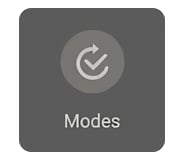
- Long-press on the Modes icon to open Routines.
2. How to Create a New Routine
To create a custom Routine, follow these steps:
- Open the Routines menu as described above.
- Tap on Create Routine.
- Set up triggers (e.g., location, time, or specific actions).
- Choose actions to automate (e.g., enabling Wi-Fi, adjusting screen brightness, or silencing notifications).
- Save the Routine.
3. How to Delete a Routine
If you no longer need a Routine, you can delete it easily:
- Open the Routines menu.
- Select the Routine you want to delete.
- Tap on More (three dots icon).
- Choose Delete and confirm.
4. Supported Samsung Galaxy Devices
The Routines feature is available on most modern Samsung Galaxy devices, including the Galaxy S24, Galaxy S25, Galaxy S26, Galaxy Z Fold, Galaxy Z Flip, and Galaxy A series. Ensure your device is running the latest software version for optimal functionality.
5. Additional Things to Check
For the best experience with Routines, consider the following:
- Ensure your device has sufficient battery life to run Routines effectively.
- Verify that location services are enabled if you're using location-based triggers.
- Keep your apps updated to avoid compatibility issues with Routines.
Related Samsung Support Topics
Thank you for your feedback!
Please answer all questions.