Use the Samsung Find app to locate a lost device
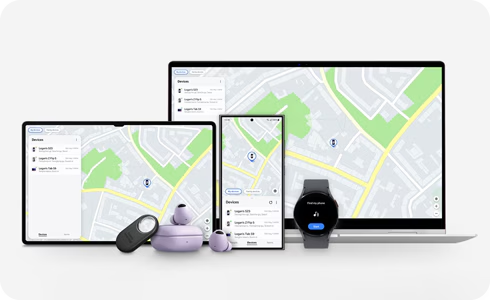
How to Use Samsung Find App to Locate a Lost Galaxy Device
If you've lost your Samsung Galaxy device, the Samsung Find app can help you track its location, ring it remotely, or receive notifications when it's found. This service works across a wide range of Galaxy devices and accessories, ensuring you can quickly recover your belongings.
1. What Is the Samsung Find App?
The Samsung Find app is a built-in tool designed to help you locate lost or misplaced Galaxy devices and accessories. It provides real-time location updates, remote control features, and additional options to assist in recovering your items.
Supported Devices:
- Galaxy smartphones (S series, Z series, A series, etc.)
- Galaxy tablets
- Galaxy Watches
- Galaxy Buds
- Galaxy SmartTags
2. How to Use Samsung Find to Locate Your Device
Follow these steps to locate your lost Galaxy device using the Samsung Find app:
- Open the Samsung Find app on another Galaxy device or visit the Samsung website.
- Sign in with your Samsung account credentials.
- Select the device you want to locate from the list.
- View the device's location on the map and use the available features to recover it.
3. Features of the Samsung Find App
The Samsung Find app offers several features to help you recover your lost device:
- Ring: Remotely activate the device's ringtone to locate it nearby.
- Blink: Activate the device's notification LED light for better visibility.
- Search Nearby: Send a short-range signal to locate the device within close proximity.
- Refresh: Update the device's location on the map.
- More: Access additional options like receiving notifications when the device is found, checking battery status, sharing the device's location, and navigating to its location.
4. How to Register and Track Items with SmartTags
SmartTags can be used to track pets, keys, bags, and other personal items. Follow these steps to register and track items:
- Ensure your SmartTag is not registered to another Galaxy device.
- Install the SmartThings app on your Galaxy device.
- Open the SmartThings app and go to the Items tab.
- Register your SmartTag and assign it to the item you want to track.
- You may need to update your SmartTag or add it to your home screen for easier access.
5. Additional Things to Check
- Ensure your Galaxy device is connected to the internet for accurate location updates.
- Make sure the Samsung Find app is enabled on your lost device.
- Check if your SmartTag is within Bluetooth range for effective tracking.
6. Related Samsung Support Topics
Thank you for your feedback!
Please answer all questions.