What to Do if Galaxy Buds Won't Connect
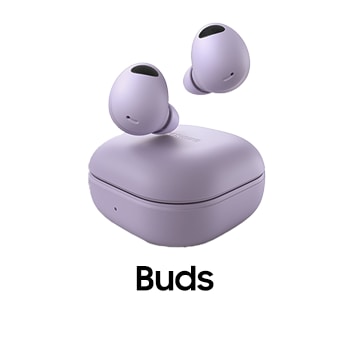
Why won't my Samsung Galaxy Buds connect properly?
If your Samsung Galaxy Buds are not connecting properly, the issue could stem from low battery, Bluetooth pairing errors, software updates, or device compatibility. Follow these steps to resolve connection issues and ensure seamless audio performance.
1. Why won't my Galaxy Buds connect properly?
- Low battery levels in the earbuds or charging case can prevent proper connectivity.
- Bluetooth pairing mode may not be activated correctly, causing connection failures.
- Outdated software on your mobile device or Galaxy Buds can lead to compatibility issues.
- Obstacles or interference between devices can disrupt Bluetooth signals.
2. How do I charge my Galaxy Buds for optimal performance?
- Ensure your Galaxy Buds are fully charged before first use or after long periods of inactivity. A minimum of 30 minutes is required for initial charging or when the battery is completely drained.
- Insert the earbuds into their respective slots in the charging case and connect the charger. The charging case and earbuds will charge simultaneously.
- Avoid charging the earbuds using a computer or notebook power source, as it may slow down the charging process.
3. Why can't I find my Galaxy Buds on my mobile device?
- Close and reopen the charging case to activate Bluetooth pairing mode.
- Ensure your Galaxy Buds and mobile device are within 10 meters (32 feet) of each other. Note that the effective range may vary depending on environmental factors.
4. What should I do if my Galaxy Buds don't connect to Bluetooth?
- Your Galaxy Buds will exit pairing mode after 3 minutes. Reinsert them into the case and reopen it to restart pairing mode.
- Manually activate pairing mode by tapping and holding the touchpad on your Galaxy Buds.
- Ensure your mobile device is within 10 meters (32 feet) of the Galaxy Buds during pairing attempts.
- Remove obstacles like walls or electronic equipment that may interfere with the Bluetooth signal.
- Restart your mobile device and relaunch the Galaxy Wearable app.
- If only one earbud connects, restart the earbuds to establish a dual connection.
5. How do I update my Galaxy phone or tablet software?
- Go to Settings > Software Update.
- Tap Download and Install.
- Follow the on-screen instructions to complete the update. After updating your mobile device, ensure the Galaxy Wearable app is also running the latest version.
6. How do I update the Galaxy Wearable app?
- Open the Galaxy Wearable app on your mobile device.
- Navigate to About Galaxy Wearable and tap Update.
7. How do I update my Galaxy Buds software?
- Open the Galaxy Wearable app on your mobile device and select Earbuds Software Update.
- Choose Download and Install to manually check for updates.
- Enable Auto Download over Wi-Fi to automatically update when connected to a Wi-Fi network.
- View the Last Update details for information on the latest software version.
8. What should I do if the issue persists?
- Reset your Galaxy Buds by inserting each earbud into its slot in the charging case.
- Remove the earbuds after approximately 7 seconds to restart them. If the charging case has a low battery, connect it to a charger first.
9. Supported Samsung Galaxy devices
This troubleshooting guide applies to Galaxy Buds models compatible with Samsung Galaxy devices, including Galaxy S24, Galaxy S25, Galaxy S26, Galaxy Z Fold, Galaxy Z Flip, and Galaxy A series smartphones and tablets.
10. Related Samsung support topics

Thank you for your feedback!
Please answer all questions.