How to Fix Poor Signal and Calling Issues on a Galaxy Phone
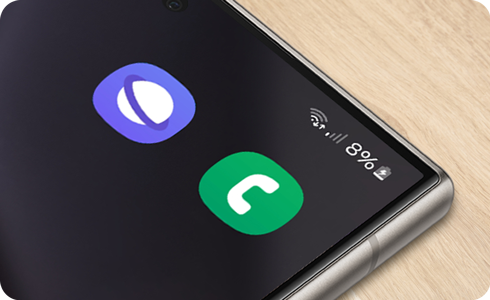
Why is my Samsung Galaxy device showing poor signal?
Poor signal on your Samsung Galaxy device can prevent you from making calls, sending messages, or using mobile data. This issue often occurs due to network coverage gaps, device settings, or physical obstructions. Follow these steps to resolve poor signal problems effectively.
1. Check your account status and usage limits
Before troubleshooting your device, ensure your account is active and within usage limits:
- Open the Phone app and dial your carrier's customer service number.
- Verify your account is active and not suspended.
- Ask about any data, call, or message limits that might be affecting your service.
2. Confirm your location is within network coverage
Your carrier's coverage map can help determine if your area has reliable signal strength:
- Visit your carrier's website and access their coverage map tool.
- Enter your current location to check signal availability.
- Contact your carrier if there's an unexpected outage in your area.
3. Optimize your physical location
Signal strength can vary significantly based on your surroundings:
-If outdoors: Move away from tall buildings, parking garages, or dense trees. Higher ground often provides better reception.
-If indoors: Stay near windows or open spaces. Avoid basements or enclosed areas that block signals.
4. Restart your Samsung Galaxy device
A simple reboot can refresh your connection to cellular towers:
- Press and hold the Power button until the Power menu appears.
- Tap Restart and confirm your choice.
- Wait for your device to fully restart and check signal strength.
5. Inspect your SIM card
A damaged or improperly installed SIM card can cause signal issues:
- Power off your device completely.
- Remove the SIM card tray using the provided eject tool.
- Check for visible damage or dirt on the SIM card.
- Reinsert the SIM card firmly into the tray.
- Test your signal after reassembly.
If possible, test with another active SIM card to rule out hardware issues.
6. Remove interfering accessories
Certain accessories can block or weaken your device's antenna:
-Remove bulky cases or signal-boosting accessories.
-Unplug any devices connected to the USB port.
7. Additional things to check
Consider these less obvious factors that may affect signal strength:
-Network congestion during peak hours.
-Airplane mode accidentally enabled in Settings.
-Incorrect network settings or APN configurations.
Supported Samsung Galaxy devices
These troubleshooting steps apply to most Samsung Galaxy devices, including the Galaxy S24, Galaxy S25, Galaxy Z Fold, Galaxy Z Flip, and Galaxy A series models.
Why the issue happens
Poor signal issues commonly occur due to:
-Geographical barriers like mountains or buildings.
-Carrier-specific network maintenance or outages.
-Device hardware malfunctions such as damaged antennas.
Related Samsung support topics
Thank you for your feedback!
Please answer all questions.