Why S24 Ultra Switched to a Flat Screen
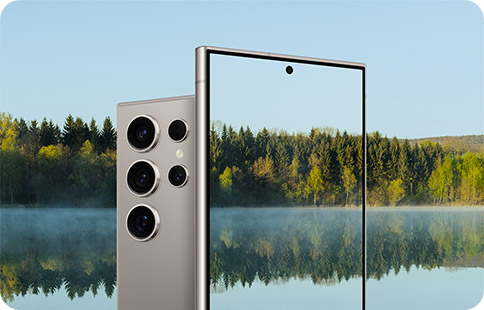
Why Did the Samsung Galaxy S24 Ultra Switch to a Flat Screen?
The Samsung Galaxy S24 Ultra transitioned from a curved edge display to a fully flat screen to enhance S Pen functionality and align with user preferences for productivity-focused devices. This change builds on design improvements introduced with the S23 Ultra and reflects Samsung's commitment to optimizing user experience based on real-world feedback.
1. Why Did the S24 Ultra Change to a Flat Screen?
The shift to a flat display on the Samsung Galaxy S24 Ultra was driven by user feedback emphasizing the need for better S Pen usability. While earlier Ultra models featured curved edges for aesthetic appeal and ergonomic grip, the curved surfaces made precise pen input challenging, especially for tasks requiring accuracy like note-taking, drawing, or editing documents.
- The curved edges of previous Ultra models interfered with smooth S Pen gliding, causing unintended input errors.
- A flat display provides a more consistent writing surface, improving precision and reducing friction during pen use.
- The design change aligns with the Ultra's productivity-focused positioning, making it ideal for professionals and creatives who rely heavily on the S Pen.
2. How Does the Flat Screen Benefit S Pen Usability?
The flat display on the Samsung Galaxy S24 Ultra eliminates the physical barriers created by curved edges, allowing the S Pen to glide smoothly across the entire screen. This results in:
- Enhanced accuracy for detailed tasks like sketching, annotating, or handwriting.
- Reduced accidental touches when resting your hand on the screen while writing.
- Improved consistency in pressure sensitivity and palm rejection performance.
3. Supported Samsung Galaxy Devices
The flat-screen design is currently available on the following Samsung Galaxy devices:
- Galaxy S24 Ultra
- Galaxy S23 Ultra
- Future Ultra models expected to continue this design trend.
4. Additional Things to Check
If you're experiencing any issues with S Pen functionality on your Samsung Galaxy S24 Ultra, consider these troubleshooting steps:
- Ensure the S Pen is properly charged and securely stored in its slot.
- Update your device software to the latest version for optimal S Pen performance.
- Check for any screen protector or case that might interfere with pen input.
5. Related Samsung Support Topics
Thank you for your feedback!
Please answer all questions.