Why Does My Galaxy Phone Ring in Vibrate or Silent Mode?
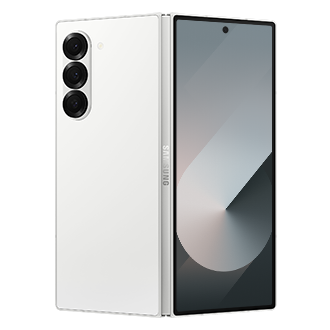
Why does my Samsung Galaxy phone ring for specific contacts despite setting vibrate or mute mode?
Your Samsung Galaxy phone may ring for specific contacts even when set to vibrate or mute mode due to a custom ringtone setting that overrides system-wide preferences. This feature allows certain contacts to bypass silent or vibrate modes, ensuring important calls aren't missed. To resolve this, you'll need to adjust the ringtone settings for individual contacts.
1. Why does my Samsung Galaxy phone ring for specific contacts despite setting vibrate or mute mode?
The issue occurs because Samsung Galaxy devices allow users to assign custom ringtones to specific contacts, including the option to override system-wide silent or vibrate modes. This feature ensures critical calls from family members, emergency contacts, or work-related numbers always get your attention, even if your phone is set to silent or vibrate.
- Custom ringtone settings for specific contacts may include the option "Ring even when set to Vibrate or Mute."
- This setting overrides the global silent or vibrate mode, causing the phone to ring for those contacts regardless of system settings.
- The feature is particularly useful for prioritizing important calls but can cause confusion if unintentionally enabled.
2. How to disable the "Ring even when set to Vibrate or Mute" option for specific contacts
To prevent your Samsung Galaxy phone from ringing for specific contacts, follow these steps to disable the custom ringtone override:
- Open the Contacts app on your Samsung Galaxy device.
- Find and select the contact you want to adjust the ringtone settings for.
- Tap the More options menu (indicated by three vertical dots or ⁝).
- Select Change ringtone/vibration from the menu.
- Disable the "Ring even when set to Vibrate or Mute" option.
- Save your changes and test the settings with a call from the contact.
3. Additional things to check
If the issue persists after disabling the custom ringtone override, consider the following troubleshooting steps:
- Ensure your Samsung Galaxy device is running the latest software version. Outdated software may cause unexpected behavior with notification settings.
- Check if the contact's number is saved in multiple formats (e.g., mobile, home, work). Each number may have different ringtone settings.
- Restart your Samsung Galaxy device to refresh system settings and resolve temporary glitches.
- Verify that the global silent or vibrate mode is properly activated. Accidentally toggling the setting can cause confusion.
4. Supported Samsung Galaxy devices
This feature and troubleshooting guide apply to most Samsung Galaxy devices, including the Galaxy S24, Galaxy S25, Galaxy S26, Galaxy Z Fold, Galaxy Z Flip, and Galaxy A series. While the interface may vary slightly across models, the core functionality remains consistent.
5. Related Samsung support topics
Thank you for your feedback!
Please answer all questions.