How to Fix Grayed-Out Menu Options on a Samsung TV
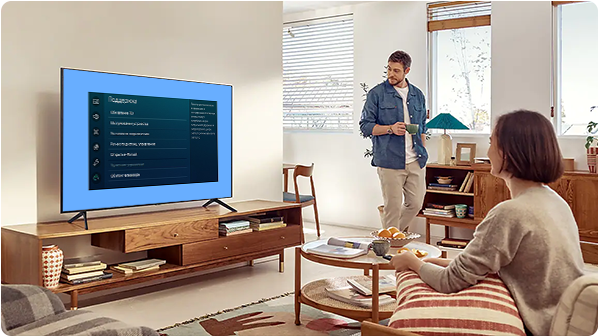
If menu options on your Samsung TV, smart monitor, or projector appear grayed out, it typically indicates that a specific function or setting is temporarily unavailable due to your current device configuration, active apps, or network conditions. This guide explains common causes and step-by-step solutions to restore full functionality.
1. Why Are Menu Options Grayed Out on My Samsung TV?
Menu options on your Samsung TV may appear grayed out for several reasons, including:
- An active streaming app (e.g., Netflix, Hulu) is running in the background.
- Your TV is not connected to the internet, disabling online-dependent features.
- Intelligent Mode is enabled, limiting access to certain picture settings.
- Apple AirPlay is disabled due to network issues or Smart Hub misconfiguration.
- A coaxial cable issue prevents Broadcasting settings from functioning.
2. How to Fix Grayed-Out Apple AirPlay Option
If Apple AirPlay is grayed out, follow these steps:
- Go to Settings > Connection > Network Settings.
- Ensure Wi-Fi is enabled and connect your TV to your home network.
- Verify that your iPhone is on the same network as your TV.
- If the issue persists, reset your TV's Smart Hub:
- Navigate to Settings > Support > Device Care > Self Diagnosis.
- Select Reset Smart Hub.
- Enter the default PIN (0000) when prompted.
3. Why Is Broadcasting Grayed Out and How to Fix It
Broadcasting settings may be grayed out due to:
- A streaming app running in the background.
- A faulty or disconnected coaxial cable.
To resolve this:
- Close any open apps.
- Navigate to the TV source in the menu.
- Check if Broadcasting is now available.
- If not, power off the TV, unplug the power cord, and disconnect the coaxial cable for 30 seconds before reconnecting.
- Restart the TV and verify Broadcasting is accessible.
4. How to Enable Picture Settings When Grayed Out
On newer QLED models, picture settings may be grayed out if Intelligent Mode is enabled. To fix this:
- Go to Settings > General > Intelligent Mode Settings.
- Turn Intelligent Mode off.
- Check if picture settings are now available.
5. Why Are Picture Size Settings Grayed Out?
Picture Size Settings are often grayed out when using streaming apps, as they automatically adjust the aspect ratio. To enable this setting:
- Close any running apps.
- Navigate to an HDMI input or TV source.
- Verify that Picture Size Settings are now accessible.
6. How to Fix a Grayed-Out Software Update Option
Software Update may be grayed out if:
- An app is running in the background.
- The TV lacks an internet connection.
To resolve this:
- Close all open apps.
- Switch to an HDMI input or TV source.
- If the issue persists, check your internet connection:
- Go to Settings > Connection > Network.
- Open Network Settings and connect via Wi-Fi or Ethernet.
- After connecting, the Software Update option should be available.
7. How to Enable Time Zone Settings When Grayed Out
Time Zone settings are often grayed out because they're automatically set via your network. To manually adjust:
- Navigate to Settings > Connection > Network > Expert Settings.
- Turn off the TV's internet connection.
- Power off the TV, wait 30 seconds, then restart.
- Go to Settings > General & Privacy > System Manager > Time > Clock.
- Set Clock Mode to Auto.
- Select your preferred Time Zone.
- Reconnect your TV to the internet.
8. Supported Samsung Devices
These solutions apply to most Samsung TVs, including QLED, Neo QLED, and Smart Monitor models. Compatibility may vary slightly across older or newer releases.
Related Samsung Support Topics
Thank you for your feedback!
Please answer all questions.